

Your team follows an established process, but every customer enquiry has its own context. Who is getting in touch? Which piece of equipment is involved? When is the next service due? Reusable instructions in AnswerPal let you use the available customer data to prepare a relevant reply. You can also pass that data to a connected system to retrieve current information about the customer.
The document editor helps you choose data, check variables and preview the completed text using an existing ticket.
One approach, with the details of each conversation
Consider a service company that installs and maintains equipment. When a customer asks about maintenance, the team needs to know which equipment is involved, what the customer needs and which next step makes sense.
In AnswerPal, you record that approach in a knowledge document: a text containing information and instructions that the AI uses to prepare a reply. You link the document to the relevant topics so that it is used for the right enquiries.
The process stays the same, while variables fill in the available details from the conversation. A variable is a placeholder, for example for the contact’s first name or the ticket subject.
An instruction could look like this:
Help the customer with this enquiry:
{{Ticket.Subject}}. The contact’s first name is{{EndUser.Firstname}}. Use a personal greeting when that name is available. Check which equipment details are already known and ask for anything still needed to follow up on the maintenance request.
This combines your usual approach with the context of the enquiry. Your colleagues maintain the instruction in one place.
Retrieve customer information from your own system
A common use is to include customer data in an API request: a request that AnswerPal sends to your own software to retrieve information. Think of a customer asking when the technician will arrive. The appointment is recorded in your scheduling system, while the customer reference is already available on the contact in AnswerPal.
With a document configured for this purpose, AnswerPal passes that customer reference to the scheduling system’s API. The system finds the corresponding maintenance appointment and returns the information. AnswerPal then uses those details alongside your instructions to reply to the customer.
The same approach can retrieve an order status, equipment details or a service contract. The reply can therefore reflect the information recorded for that customer in your business system.
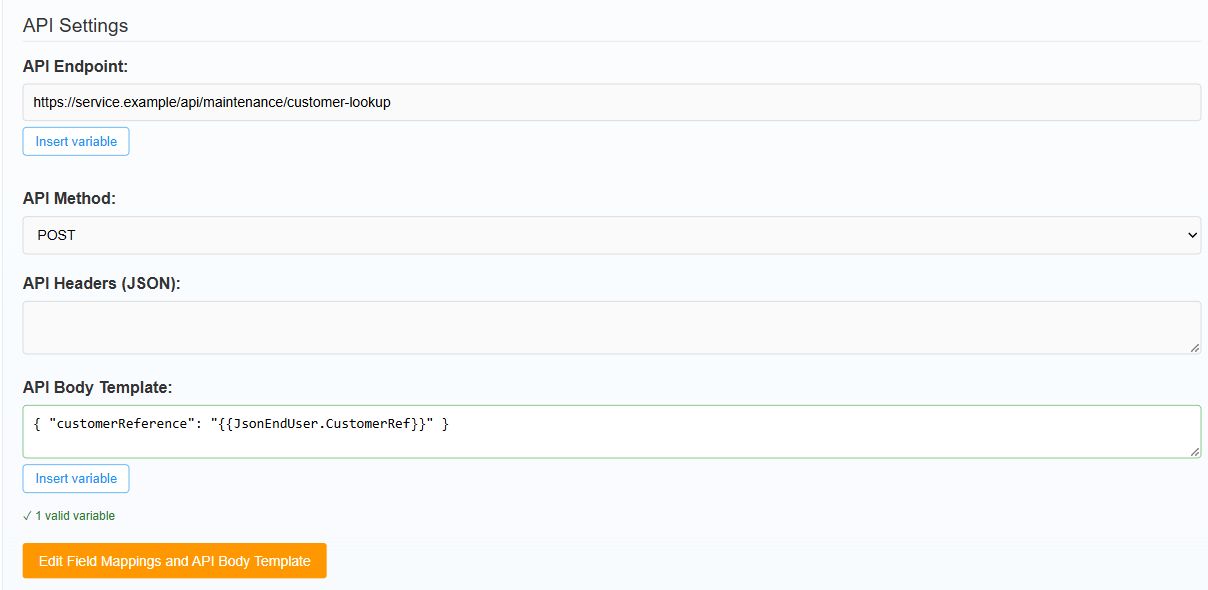
To set this up, enable Data retrieval settings in the document editor. Under API Settings, specify where to request the information and which data to send. With Insert variable, you can include the customer reference in the request, for example. The connection to your system determines which information can be retrieved.
Choose data without memorising variables
With Insert variable, you find the data you need and insert it at the cursor. The list provides explanations and examples to help you choose the right item.
For a ticket reply, you could use the contact’s first name or company, include the ticket subject, or choose a custom field you have configured. At the service company, such a field might contain an equipment reference.
The editor shows which variables are recognised and which need attention. This helps you spot an unrecognised spelling while editing. Colleagues who update the instructions later can consult the same list.
Data that fits the stage of the conversation
Different data is available when replying to an existing ticket than at the start of a conversation. With Variables for, you choose the context in which you want to check the text: a ticket reply, an initial channel instruction or a phone greeting.
For the maintenance example, select Ticket reply (ticket and message known). The variable picker and checks then match a situation where a ticket and message are available. If you reuse the text at a different stage, check again that the selected data is available there. You manage links to topics or channels separately.
Preview the text with a specific ticket
With Preview on a ticket, you can see how the variables in your document are filled in. This lets you check your text while you are editing it.
- Use an existing maintenance enquiry as an example and enter its ticket number.
- Click Preview and check that the contact name, subject and any custom fields appear in the right places.
- Also check a ticket where a value is missing. An instruction could specify which follow-up question the AI should ask in that case.
- Save the instruction, check its link to the relevant topic and review a reply prepared using it.
The preview shows the completed instruction text. For an API document, you check the populated request data. Then also test the connection to your system and review the reply prepared with the retrieved information.
A suitable signature for your reply
You can also choose variables for your HTML signature and preview the completed text. For example, include the name of the staff member sending the reply or add the ticket number for future correspondence. Use Preview template to check the result for a specific ticket.
Start with one common customer enquiry and a few different tickets. This will help you see which data makes your instructions more useful and where an additional question is needed.
