

Customer enquiries do not follow your schedule. They arrive while you are travelling, between appointments or out on the shop floor. Sometimes you just need to check what is happening without opening your laptop.
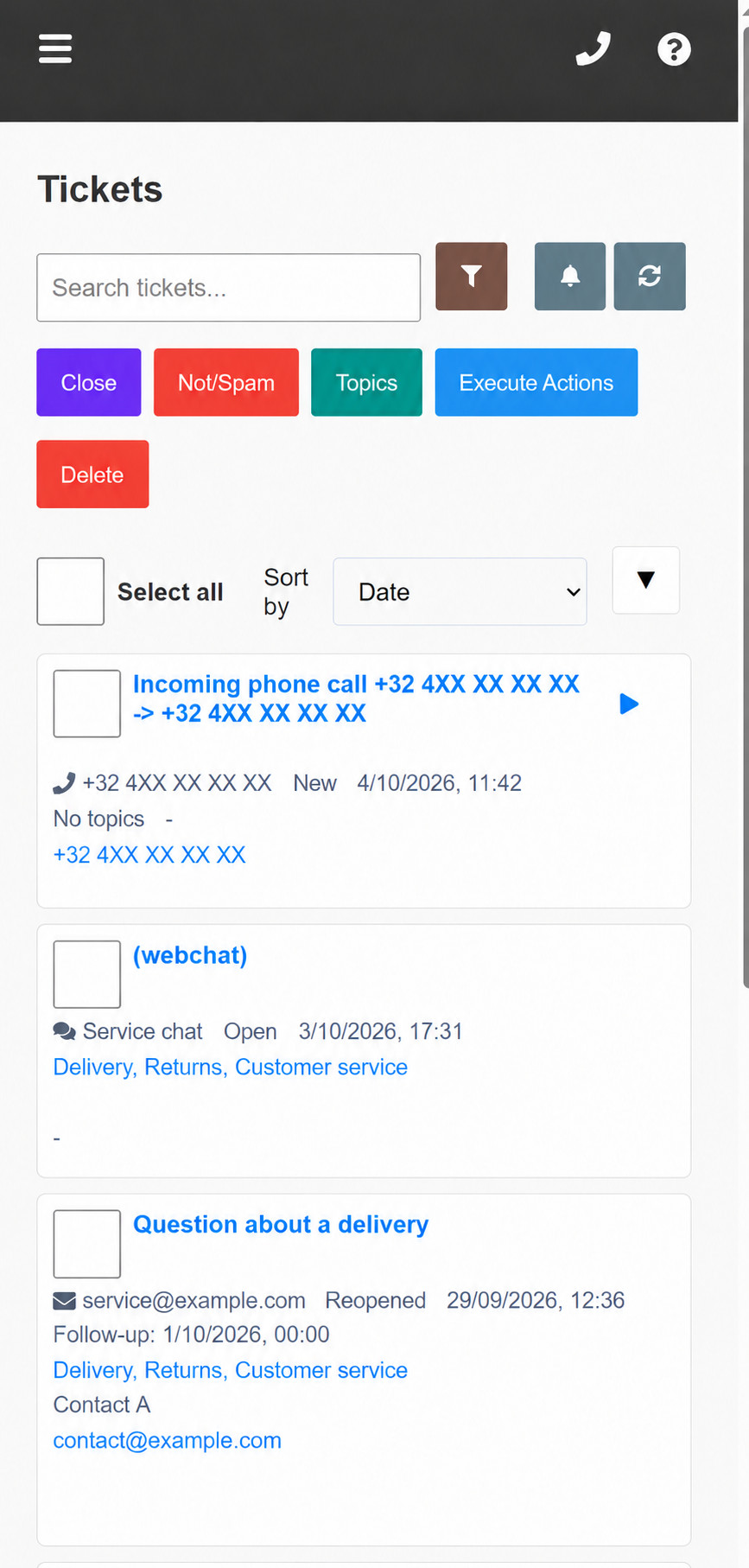
AnswerPal’s mobile view makes that easier. On your smartphone, tickets appear in a clear list of cards. Open a conversation, read the context and carry on working in the same customer environment you use on your computer.
From a wide table to readable ticket cards
A desktop overview places a lot of information side by side. That is not always convenient on a small screen. AnswerPal therefore displays the ticket list as cards on smartphones. The subject, channel, status and other ticket details are grouped together, making conversations easier to recognise.
Imagine you coordinate the schedule for a maintenance company. Between appointments, you want to check whether a customer has sent more information about a repair. Find the ticket, tap the subject and read the messages. You have the context at hand before calling back or replying.
Open a ticket and continue the conversation
There is no separate mobile workflow to learn. The same tickets and conversations remain available, subject to your account permissions. To pick up a request:
- Open your AnswerPal environment on your smartphone and sign in.
- In Tickets, find the conversation you need.
- Tap the subject to open the details and messages.
- Read the latest messages first, then handle the ticket using the reply options available for that channel.
For an email, for example, open the message through View Details and choose Edit Answer. The reply wizard guides you through to sending. Replies are not sent directly from the ticket card.
The screens for replying, forwarding and creating new messages have also been adapted to smaller screens. Fields and buttons have more room, and the close button stays within reach while scrolling. This makes a quick follow-up more practical when you are out of the office.
Add AnswerPal to your home screen
Do you regularly use AnswerPal on your phone? Add the web app to your home screen so that you do not have to look up the address each time.
- Android with Chrome: open your AnswerPal environment and use the installation prompt, or choose Install app in the browser menu.
- iPhone or iPad with Safari: open your AnswerPal environment, tap the share button and choose Add to Home Screen.
The exact wording may vary with the browser or device version. After that, open AnswerPal using its own icon. You are still using the same web app; no separate app-store installation is needed.
Good to know
An internet connection is still required: this feature does not provide an offline mode. Your existing access permissions also continue to apply. The home-screen icon does not grant extra access to tickets and does not, by itself, provide mobile push notifications.
Would you mainly like to know when an urgent enquiry needs attention? Read how to alert the person responsible automatically. For short customer conversations, receiving and replying to SMS messages in AnswerPal is another useful option.
Want to use AnswerPal on the move? Open your own environment on your smartphone and try a ticket you would normally handle on your computer. Contact the AnswerPal team if you would like help setting it up for your team.
Explore the other improvements in our Product update October 2026.
