

A short question about an appointment, delivery or repair often fits neatly into an SMS. For your team, it helps when those messages are part of the normal customer workflow instead of staying on a separate phone.
With an active SMS channel, these conversations arrive in AnswerPal. Staff can read and reply to them in the ticket workspace. Depending on your settings, AnswerPal can also prepare a reply or send one automatically.
A short message becomes a conversation you can follow up
Imagine a customer sends an SMS asking when they can collect a repaired device. The message appears as a ticket. A member of staff sees the question and can reply from that conversation.
If the phone number is already linked to a contact, AnswerPal uses that existing connection. This helps your team recognise who is getting in touch. Staff do not need to switch to a separate messaging app to handle the SMS conversation.
Is AnswerPal connected to your repair management system? It can then look up the current repair status and use that information to answer the customer.
Start an SMS conversation yourself
When your environment allows it, you can also send a short message to a customer yourself, for example to let them know that a device is ready to collect. Go to Tickets > New Ticket and choose the appropriate SMS channel.
Starting from an existing contact can be even easier: the SMS icon beside a phone number opens a new ticket with that number already filled in. If there is exactly one active SMS channel, it is selected automatically.
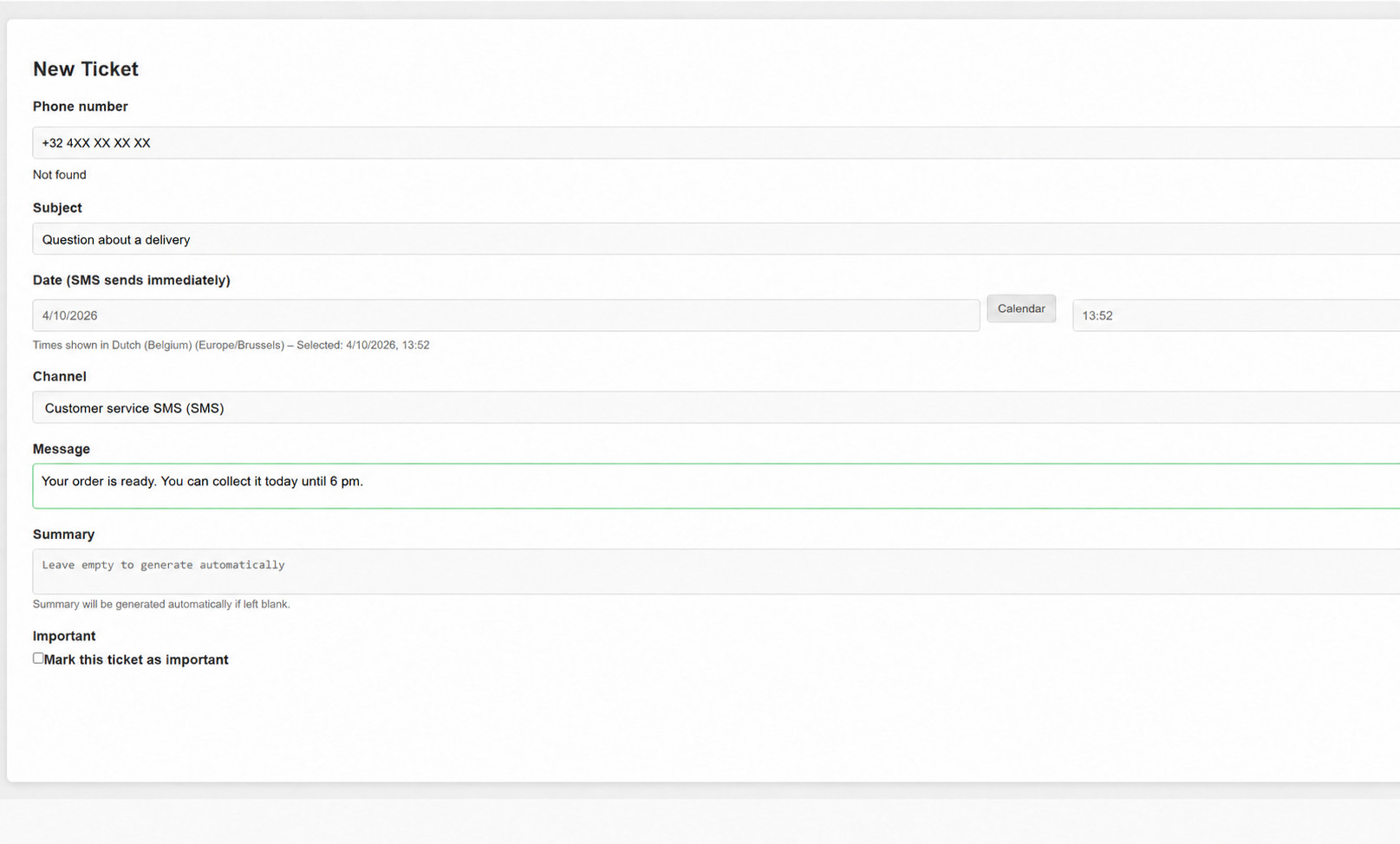
Before sending, check:
- Phone number: is this the intended number?
- Channel: are you sending through the correct active SMS channel?
- Subject: will the subject help your team find the ticket again?
- Message: is the message clear, complete and appropriate for the recipient?
You can leave the summary empty; AnswerPal can generate it automatically. Create starts sending immediately. For SMS, the date field does not schedule a later send. Saving through the unsaved-changes warning can also create the ticket and start sending. Complete your checks before you save.
Reply as a team or with AI assistance
When the customer replies to an SMS conversation you have started, their response stays with the same ticket. A member of staff can continue the conversation. With automatic processing enabled, AnswerPal can recognise topics and carry out the configured reply actions.
Your channel settings determine the workflow. The ability to send the first SMS also depends on the outbound permissions set for your environment. Having access to the form does not mean that you can contact any phone number.
Outbound messages show their sending status. This helps you track progress or spot an error, but it does not guarantee that the recipient has read the message.
SMS is short, but not unlimited
Long messages may be split into several chargeable SMS segments. The characters used also affect the length. The segment counter in the reply field helps you check this. SMS here does not support attachments or MMS, and this is not a bulk campaign feature.
Opt-outs are respected: after a recognised STOP message, AnswerPal blocks further sending through that channel. Agree in advance when your team should use SMS and for which contacts.
Reply to a customer or alert a colleague?
This article is about a conversation with the customer. Would you like to alert the person responsible automatically when a critical situation arises? Use a separate notification action for that. Read more about automatic SMS and email alerts.
Would you like to use SMS for customer follow-up? Contact the AnswerPal team. We can help you configure the channel, permitted recipients and preferred reply workflow.
Explore the other improvements in our Product update October 2026.
